
Key Takeaways
- Migrate for a clear reason, such as slow performance or missing features. Time the move away from peak season, and check that optimization cannot fix it.
- Plan what to move: products, customers, orders, reviews, SEO assets, and settings. Clean data first, and retire anything you no longer need, avoiding old clutter.
- Choose a platform by its requirements and total cost, not brand. Pick a method that fits your data, and run a small test migration first.
- Follow a clear process: audit, clean, map, test, migrate, connect integrations, run acceptance tests, cut over, then monitor. Keep the old store as a fallback.
- Budgets run from about $3,000 to $50,000, and timelines from weeks to months. Protect SEO with redirects, test payments and integrations, and monitor after launch.
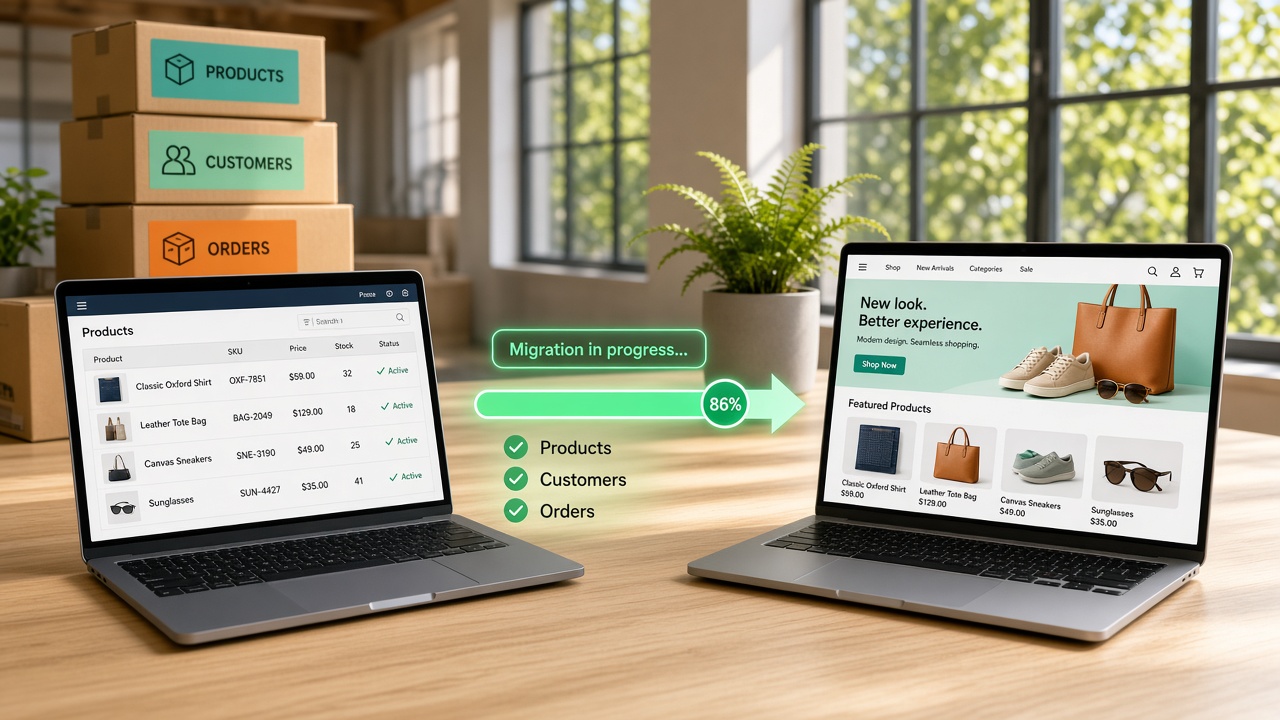
Moving your store to a new platform can feel like moving house while still running the business. Orders keep coming in. Customers keep browsing.
And somewhere in the middle, product data, order history, and search rankings have to arrive safely at the new address.
Most migrations do not fail because the new platform is bad. They fail because something small goes missing: a variant, a redirect, a customer account, or a tax setting. Those gaps cost sales and trust long after launch day.
This guide explains how to migrate your ecommerce store to a new platform without losing data. You will learn what to move, how to choose a method, what the process involves, what it costs, and which risks to plan for.
Why Ecommerce Stores Migrate to New Platforms, and When It Is the Right Time
Few store owners migrate for fun. Most move because the current platform has become slow, costly, or limiting. Here are the main reasons stores replatform, and how to tell if now is the right time for your own online store.
1. Performance and Scalability Limits
Slow pages, crashes during sales, and laggy admin tools are warning signs. When your platform cannot handle your catalog, traffic, or order volume, every peak season becomes a gamble.
Performance problems cost sales, and workarounds only delay the real fix.
2. Missing Features and Rising Workaround Costs
Missing features add up. Workarounds pile up when a platform lacks B2B tools, multi-currency, or modern integrations.
A Digital Commerce 360 survey from late 2022 found 27% of brands were considering migration, and most planners expected spending up to $500,000.
3. Platform Support Can Become a Hard Deadline
Platform support can become a hard deadline. Adobe gives each Magento and Adobe Commerce release about three years of support.
By its published dates, version 2.4.4 lost support in April 2025, 2.4.5 in August 2025, and 2.4.6 in March 2026.
4. Choosing the Right Time to Migrate
Timing matters as much as the reason. Consider migrating when maintenance costs outweigh benefits, and optimization cannot fix the root problem.
Avoid starting right before peak season, and leave room for testing, so the move happens in a calm stretch.
What Data to Migrate: Products, Customers, Orders, Reviews, and SEO Assets
A migration is only as good as the data that arrives. Before you hire ecommerce developers, make a full list of what must move, what can be cleaned up, and what should stay behind. Here are the six data groups to plan.
1. Products, Variants, and Media
Move titles, descriptions, SKUs, prices, variants, inventory, categories, attributes, and images. Check that variant options map correctly, because size and color combinations often break. Clean duplicates and outdated listings first, so you do not carry old clutter into the new store.
2. Customers and Accounts
Transfer names, emails, addresses, order history links, tags, and marketing consent. Most platforms cannot move password hashes, so plan a password reset email. Keep consent records intact, because sending marketing to people who opted out creates legal and trust problems.
3. Orders and Transaction History
Migrate past orders with line items, totals, taxes, discounts, shipping details, and statuses, so customers can still view purchases and your team can handle returns. Keep order numbers consistent, and confirm payment records stay accurate for accounting and tax purposes.
4. Reviews, Content, and User-Generated Data
Reviews build trust and help SEO, so move them with ratings, dates, and product links. Bring over blog posts, landing pages, policy pages, and help content too. Check images and internal links, and decide which outdated pages to retire instead.
5. SEO Assets and URLs
Protect your rankings by keeping URLs the same where possible, or mapping every old URL to a new one with 301 redirects. Move page titles, meta descriptions, alt text, canonical tags, structured data, and sitemaps, then verify them after launch in Search Console.
6. Settings, Integrations, and Business Rules
Data also includes settings: tax rules, shipping zones and rates, discount codes, gift cards, payment gateways, email templates, and integrations with ERP, CRM, and marketing tools. List each one, and decide whether to rebuild, replace, or retire it.
How to Choose the Right New Platform and Migration Method?
The best platform is the one that fits how you sell today and tomorrow. The best migration method depends on your data and risk tolerance. Here is how to compare platforms, then choose how to move your whole store safely.
1. Start With Requirements, Not Brands
Start with requirements, not brands. List must-haves like B2B pricing, multi-currency, subscriptions, or marketplace features, plus nice-to-haves. Score each platform against the list, and involve sales, operations, and finance, so the choice reflects real daily work, not a good demo.
2. Compare Platform Types
Compare platform types. Hosted SaaS is quick to launch, open-source offers control, and headless gives front-end freedom. Good ecommerce software development services help weigh these options against your team size, budget, and growth plans, so you avoid buying unneeded complexity.
3. Check Integration Fit Early
Check integration fit early. Confirm the new platform connects with your ERP, payment gateways, shipping carriers, tax tools, and marketing stack, and review API limits. Missing connectors mean custom work, so find those gaps before signing, not after work begins.
4. Look at Total Cost, Not Plan Price
Look at total cost, not just the plan price. Add licenses, transaction fees, paid apps, hosting, development, migration, and training over three years. A cheaper monthly plan can cost more once add-ons, extra apps, and custom work are all included.
5. Test SEO, Speed, and Scalability
Test SEO, speed, and scalability. Check URL control, redirect tools, metadata fields, structured data, mobile performance, and how the platform handles traffic spikes. These affect organic traffic and sales, and weak SEO controls can quickly undo months of ranking gains.
6. Choose a Migration Method That Fits Your Data
Choose a method that fits your data. Migration apps handle simple catalogs cheaply, custom scripts or APIs suit complex data, and agencies manage the whole project. Manual entry only works for tiny stores. Compare cost, control, and data error risk.
7. Decide How to Cut Over
Decide how to cut over. A big-bang switch is fast but risky, a phased move shifts one section at a time, and a parallel run keeps both stores live. Larger stores often prefer phased or parallel runs to protect orders.
8. Run a Test Migration Before You Commit
Run a test migration before you commit. Move a sample of products, customers, and orders, then compare counts, prices, and URLs. Use a scorecard to make the call, and check contract terms for data export, so leaving later stays possible.
Ecommerce Platform Migration Process: From Audit to Go-Live
A migration succeeds on sequencing. Each step protects something: your data, your rankings, or your orders. Here is how the process runs from first audit to go-live, and what to do at each stage so nothing goes missing in transit.
Stage 1: Audit Your Current Store
Strong ecommerce website development starts with an audit. Inventory your current store: products, customers, orders, pages, apps, integrations, redirects, and custom code. Record traffic, top landing pages, and conversion rates, so you have a clear baseline to compare after launch.
Stage 2: Set Goals, Scope, and a Timeline
Set goals and scope: what moves, what gets cleaned up, and what gets retired. Name an owner for each area, choose the cutover date away from peak season, and set success metrics: order accuracy, page speed, and organic traffic retention.
Stage 3: Clean and Map Your Data
Clean before you move. Remove duplicates, fix broken variants, standardize attributes, and archive old products. Then map every field from the old platform to the new one, noting what has no equivalent, so surprises appear on paper, not in production.
Stage 4: Build and Configure the New Store
Set up the new store in a staging environment. Configure products, collections, taxes, shipping, payments, and apps, then build or adapt the theme. Keep the old store live, and never point customers at staging, so work continues without risking sales.
Stage 5: Run a Test Migration
Run a test migration with a sample of products, customers, and orders. Compare record counts, prices, variants, images, and URLs against the old store. Log every mismatch, fix the mapping rules, and repeat until the sample matches the source cleanly.
Stage 6: Migrate Fully and Prepare SEO
Migrate the full dataset, then validate it with spot checks and automated counts. Build a redirect map for every changed URL, carry over titles, descriptions, and structured data, and prepare the sitemap so search engines can follow the whole move.
Stage 7: Connect Integrations and Payments
Connect payments, shipping, tax, ERP, CRM, email, and analytics. Test each with sandbox accounts, then place real test orders for every payment method and shipping option, including refunds, so the money and inventory flow correctly before the first customers arrive.
Stage 8: Test and Run User Acceptance
Test the whole customer journey on real phones and desktops: search, filters, cart, checkout, accounts, emails, and returns. Check page speed, accessibility, tracking, and redirects, and have staff place orders, so problems surface before launch, not after customers find them.
Stage 9: Cut Over to the New Store
Plan the cutover carefully. Freeze changes on the old store, migrate the latest orders and customers, switch DNS, and activate redirects. Keep the team on standby, post a short notice if needed, and check the first few live orders immediately.
Stage 10: Monitor and Improve After Launch
Watch closely after launch. Monitor errors, orders, payments, 404 pages, indexing, rankings, and speed daily for the first few weeks. Compare results with your baseline, fix issues fast, and keep the old store archived until you are fully confident nothing is missing.
How Much Does Ecommerce Migration Cost, and How Long Does It Take?
Most ecommerce migrations cost between $3,000 and $50,000 and take about four to sixteen weeks, depending on store size and complexity.
Your ecommerce website development cost grows with catalog size, integrations, and custom work. Here is what each part of a typical store migration costs.
| Migration Element | What It Covers | Estimated Cost ($) |
|---|---|---|
| Audit and Planning | Current store review, data inventory, scope, timeline, and migration plan | 500-600 |
| Redirects and SEO Setup | URL mapping, 301 redirects, metadata transfer, sitemaps, and Search Console checks | 700-800 |
| Launch and Cutover | Final data sync, DNS switch, live monitoring, and go-live support | 900-1,000 |
| Data Cleanup and Mapping | Duplicate removal, attribute standardization, and field mapping between platforms | 1,200-1,400 |
| Customer and Order Migration | Accounts, order history, consent records, and password reset emails | 1,800-2,000 |
| Product and Catalog Migration | Products, variants, images, categories, and inventory, with test migrations | 2,500-3,000 |
| Store Setup and Configuration | Taxes, shipping, payments, discounts, email templates, and settings in staging | 3,500-4,000 |
| Testing and QA | Customer journey tests, payment and refund tests, and user acceptance testing | 4,500-5,000 |
| Integrations and Payments | ERP, CRM, shipping, tax, email, and analytics connections | 5,500-6,000 |
| Theme Design and Custom Development | Theme rebuild or adaptation, custom features, and replacement of old apps | 6,500-7,500 |
Migration Challenges and How to Protect Data, SEO, and Sales
Even well-planned migrations hit problems. Missing records, broken links, and checkout glitches can quietly drain revenue after launch. Here are the most common challenges, and practical ways to solve each one before they affect your customers or your search rankings.
1. Data Loss and Mismatches
Records can go missing or arrive wrong. Variants may merge, prices may round differently, images may break, and order totals may change. Small mismatches are easy to miss in a large catalog, and customers notice them quickly, usually at checkout.
How to solve it: Clean data first, run test migrations, compare record counts and values, and keep the old store available for reference.
2. SEO and Traffic Drops
Changed URLs, missing redirects, and lost metadata can push rankings down fast. Search engines treat a new URL as a new page, so weeks of traffic can disappear. Recovery takes time, and some rankings never fully return.
How to solve it: Map every old URL to a new one, use 301 redirects, carry over metadata, and monitor Search Console after launch.
3. Downtime and Lost Orders During Cutover
Switching stores can interrupt checkout. Orders placed during the move may land on the old store, payments may fail, and inventory can fall out of sync. Even short outages cost sales and frustrate customers who are ready to buy.
How to solve it: Choose a quiet cutover window, freeze changes briefly, sync late orders, and keep the team on standby for launch.
4. Broken Integrations and Automations
Connections to ERP, shipping, tax, email, and analytics often break during a move. Orders may stop reaching the warehouse, tracking emails may fail, and reports may show wrong numbers. Teams often discover these gaps only after customers complain.
How to solve it: List every integration early, test each with sandbox accounts, place real test orders, and set alerts for failed syncs.
5. Customer Accounts, Passwords, and Consent
Most platforms cannot carry over passwords, so customers may find their logins failing. Saved addresses, wishlists, and marketing consent may also go missing. Mistakes here frustrate loyal buyers and can create privacy problems if opt-outs are lost.
How to solve it: Send a clear password reset email, migrate consent records carefully, and give customers a simple help page and support contact.
6. Payments, Subscriptions, and Gift Cards
Payment data is the hardest to move. Stored cards, subscriptions, and gift card balances may not transfer between processors, and refunds on old orders can get complicated. Getting this wrong hits revenue, and it hits customer trust directly.
How to solve it: Check processor migration options early, plan subscription moves separately, honor old gift cards, and test refunds on old orders.
7. Performance, Design, and Tracking Gaps
The new store may look good but run slower, break on some phones, or lose tracking. Missing analytics tags and ad pixels make results impossible to compare, and slower pages quietly reduce conversion rates after launch.
How to solve it: Test speed and mobile layouts before launch, carry over tracking tags, verify analytics events, and compare results with your baseline.
8. Budget, Scope Creep, and Team Overload
Migrations touch marketing, operations, finance, and IT, and every team has requests. Scope grows, timelines slip, and staff juggle daily orders while testing the new store. Rushed decisions then create the very errors the project aimed to avoid.
How to solve it: Set a clear scope, assign owners, prioritize requests, add buffer time, and consider an experienced migration partner for support.
Final Thoughts
A good migration is one customers barely notice. Their favorite products are still there, their orders are intact, and your site still shows up in search. That quiet success comes from planning, not luck.
Start with a thorough audit and a clear list of what must move. Clean your data, choose a platform and method that fit your needs, and test before you commit. Protect your rankings with careful redirects, and schedule the cutover away from your busiest weeks.
Budget for more than the move itself. Plan for testing, integrations, and a few weeks of close monitoring afterward. Do that, and your new platform becomes a stronger foundation for growth, with your data, traffic, and customer trust safely carried across.
Frequently Asked Questions
1. What is ecommerce platform migration?
Ecommerce platform migration means moving your online store from one platform to another. It covers products, customers, orders, content, URLs, and integrations, so your business can safely keep running on the new platform without losing data, search traffic, or sales.
2. When is the right time to migrate?
Consider migrating when performance problems, missing features, or rising workaround costs hold back growth, or when your platform’s support is ending. Avoid peak season, and check that optimization cannot fix the problem first, since migration is a very big project.
3. How much does ecommerce migration cost?
Most migrations cost between $3,000 and $50,000, depending on catalog size, integrations, and custom work. Simple stores using a migration app sit at the low end. Large stores with ERP links cost more, and enterprise projects can often exceed this.
4. How long does ecommerce migration take?
Most migrations take about four to sixteen weeks. A small store with a simple catalog may finish in a month, while stores with custom features, many integrations, or a redesign take longer. Cleanup and testing often take longer than expected.
5. Will I lose my SEO rankings when I migrate?
Not necessarily, but rankings can drop if URLs change without proper redirects. Map every old URL to a new one with 301 redirects, carry over titles and descriptions, submit a sitemap, and monitor Search Console, since some fluctuation is normal.
6. Can I move customer passwords and accounts?
Customer accounts usually move, but passwords often cannot, because many platforms do not transfer password hashes. Plan a clear password reset email, migrate marketing consent carefully, and give customers a help page, since login problems frustrate loyal buyers the most.
7. What data should I migrate?
Migrate products and variants, customers, orders, reviews, content, SEO data such as URLs and metadata, and key settings such as taxes, shipping, and discounts. Clean data first and retire outdated items, so you carry over only what helps your business.
8. Should I migrate myself or hire a migration partner?
Small stores with simple catalogs can use a migration app and do it themselves. Larger stores, complex data, ERP links, or strict deadlines usually benefit from experienced developers who plan, test, and handle cutover, reducing the risk of costly mistakes.
9. How do I avoid downtime during migration?
Build and test the new store in staging while the old one keeps selling. Choose a quiet cutover window, freeze changes briefly, sync late orders, switch DNS, and monitor closely. Many stores also keep the old site as a fallback.
10. What are the most common migration mistakes?
Common mistakes include skipping the audit, ignoring redirects, moving messy data, forgetting integrations, launching before testing payments, and migrating during peak season. Avoid them with a clear plan, test migrations, a quiet cutover window, and close monitoring right after launch.